Language - Max: Difference between revisions

From Phidgets Support
No edit summary
 
(44 intermediate revisions by 4 users not shown)
Line 1: Line 1:
{{#seo:|description=Learn how to use Phidget USB devices with Max.}}
[[Category:Language]]
[[Category:Language]]
{{OSLang|[[File:icon-MaxMSP.png|link=|left|alt=MaxMSP|64x64px]]|Max/MSP, developed by [http://cycling74.com Cycling74] is a visual programming language for creating music and media applications.}}
__TOC__


== Introduction ==
==Get Started==
With the Phidgets Max library, it's easy to create Max patches that work with Phidget devices.


If this is your first time working with a Phidget, we suggest starting with the Getting Started page for your specific device. This can be found in the user guide for your device. That page will walk you through installing drivers and libraries for your operating system, and will then bring you back here to use Max/MSP specifically.
==Max Libraries==
Max/MSP is capable of using the complete {{Phidget22API}}, including events. We also provide example code in Max/MSP for all Phidget devices.
To develop on Max with Phidgets, you'll need the [https://www.phidgets.com/downloads/phidget22/libraries/windows/Phidget22MaxMSP.zip Phidgets Max Library].  


Max/MSP is capable of using most of the Phidget API, including events. All the supported functions for Max/MSP will be documented in the .maxhelp files. We also provide example code in Max/MSP for all Phidget devices.
Unpack the zip file and copy the appropriate folder:
* For 32-bit Max, copy the '''x86''' folder.
* For 64-bit Max, copy the '''x64''' folder.


Max/MSP can be developed with Windows and OS X.
The folder you copied needs to be placed in a specific location for Max to reference it. Open Max and navigate to '''Options -> File Preferences'''.


'''Only Max/MSP 6 and higher are supported.'''
[[Image:Max_filepreferences2.png|link=|center]]


You can compare Max/MSP with our other supported languages.
The folder that you copied earlier needs to be placed in any of the locations listed in File Preferences. Navigate to one of the locations and paste the folder:


== Quick Downloads ==
[[Image:Max_folder2.PNG|link=|center]]


'''<span style="color:#FF0000">List of download links, to be added once files are available</span>'''
The Phidget Max library can now be referenced.


=== Documentation ===
==Development Environment Configuration==
=== Example Code ===
===Using Our Examples===
=== Libraries and Drivers ===
{| style="margin:auto;" class="table-no-border mw-collapsible mw-collapsed"
|+ '''Instructions'''
|-
| Navigate to the '''examples''' folder located within the Phidget22MaxMSP folder you previously unpacked: ||[[Image:Max_examples.PNG|link=https://cdn.phidgets.com/docs/images/a/a0/Max_examples.PNG|350px]]
|-
|From here, select an example that will work with your Phidget and open it in Max. You can run the example by simply pressing the '''start''' button.<br/><br/>The example is now running. Play around with the device and experiment with some of the functionality. When you are ready, the next step is configuring your project and writing your own code! || [[Image:Max_run2.png|link=https://cdn.phidgets.com/docs/images/f/f8/Max_run2.png|350px]]
|-
|}


== Getting Started with Max/MSP ==
=== Writing your own Code ===


If you are new to writing code for Phidgets, we recommend starting by running, then modifying existing examples. This will allow you to:
{| style="margin:auto;" class="table-no-border mw-collapsible mw-collapsed"
{{ExampleCodeReasons}}
|+ '''Instructions'''
|-
|colspan="2"| You should now have working examples and a project that is configured. This teaching section will help you understand how the examples were written so you can start writing your own code.<br/>Your main reference for writing Max code will be:<br/><br/>
* The [https://www.phidgets.com/?view=api Phidget22 API] Manual
* The Max [https://www.phidgets.com/?view=code_samples&lang=MaxMSP examples]
|-
| First, let's explain how to operate the examples. We will take a look at the PhidgetVoltageInput example:<br/><br/>For this particular example, the Max object is called '''PhidgetVoltageInput'''. Objects/message boxes are connected to the inputs and outputs of this object. Input objects will either cause a property of the device to change or request for a property to be retrieved. Output objects return the retrieved information.<br/><br/>All supported functions for Max can be found in the [https://www.phidgets.com/?view=api Phidget22 API].||[[File:MSP_Example2.png|link=https://cdn.phidgets.com/docs/images/f/f9/MSP_Example2.png|350px]]
|-
|You can click on the '''getDeviceSerialNumber''' message box to request the Phidget to retrieve the serial number of the device.||[[File:MaxMSP_GetSerial.png|link=]][[File:MaxMSP_GetVoltage.png|link=]]
|-
|colspan="2"|If your example contains a '''get[DataType]''' message box (e.g. '''getVoltage'''), click on it to cause the associated data to be output with a relevant prefix.
|-
|colspan="2"|If your example contains '''start''' and '''stop''' message boxes, you can use them to turn on continuous polling for events. <br/><br/>For the PhidgetDigitalOutput example, there are '''setDutyCycle''' and '''setState''' message boxes that control the output.
|-
|colspan="2"|Your best resource to program in Max will be our examples. If you aren't familiar with concepts in Phidget programming, see the [https://www.phidgets.com/docs/Phidget_Programming_Basics Phidget Programming Basics].
|-
|colspan="2"|{{hiddenh4|Step One: Initialize and Open}}
|-
|Initializing and opening the device is done by placing a new object. Other objects handle different Phidgets - a Spatial, a Light Sensor, a Motor Controller, etc. Only the name of the object changes. You can find the name for the object in the device's .maxhelp file (e.g. VoltageInput.maxhelp). If you are unsure what the software object for your device is, go to the '''API''' tab on its product page on our website. In the case of a Voltage Input, we name it '''PhidgetVoltageInput'''.<br/><br/>'''Important:''' a local connection will reserve the device until closed. This prevents any other instances from retrieving data from the Phidget, including other programs. Every Phidget object in Max will automatically try to connect to and reserve a Phidget for itself. As long as a Max Phidget object is running, it will continuously try to connect to a Phidget, even trying to reconnect if it gets disconnected.||[[File:MaxMSP_VoltageInput_generic.png|link=]][[File:MaxMSP_GetVoltage.png|link=]]
|-
|colspan="2"|{{hiddenh4|Specifying a Phidget}}  
|-
|colspan="2"|When the instance is created as with the Voltage Input above, normally it will make a connection to the first device of its type it can find. The Phidget object can also be declared with a number of specifiers to open a specific Phidget instead.


Instructions are divided up by operating system. Choose:
Specifiers can be added to the object in the format: '''PhidgetExternal {Specifiers}'''
*[[#Windows(XP/Vista/7)|Windows XP / Vista / 7]]
*[[#OS X |OS X]]


== Windows ==
These will be written in the form: '''specifier=value'''


===Description of Library Files===
Available specifiers include:


Max/MSP programs on Windows depend on the following files. The installers in the Quick Downloads section put only the phidget22.dll into your system. You will need to manually put the PhidgetXXX.mxe onto your system.
* '''serialnumber''' - The serial number of the device
* '''channel''' - The channel of the device to open
* '''hubport''' - The hub port the device is plugged into (where applicable)
* '''ishubport''' - Should this channel be opened on a hub port directly, or on a connected VINT device (default)
* '''remote''' - Forces connection to a remote device over a network, ignoring devices on the local machine
* '''local''' - Forces connection to a device plugged into the local machine, ignoring network devices
|-
| '''Example:''' Opening a VoltageInput with serial number 349428. ||[[File:MaxMSP_VoltageInput_specific.png|link=]]
|-
|colspan="2"|Here are some other examples:
*Open a Digital Input:
<syntaxhighlight>PhidgetDigitalInput</syntaxhighlight>
*Open channel 1 of a Digital Input Phidget connected to port 2 of a hub with serial number 35569
<syntaxhighlight>PhidgetDigitalInput serialnumber=35569 channel=1 hubport=2</syntaxhighlight>
*Open open hub port 2 as a DigitalInput for a hub with serial number 35569
<syntaxhighlight>PhidgetDigitalInput serialnumber=35569 hubport=2 ishubport=1</syntaxhighlight>
|-
|colspan="2"|{{hiddenh4|Using a Phidget Over a Network}}
|-
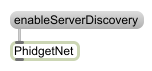
|To use the Network Server, first the Phidget needs to be plugged in to a computer that has the Network Server turned on within your local network (For information, see the [[Phidget Network Server]] page). Add a '''PhidgetNet''' object and send the message:'''enableServerDiscovery'''<br/>Then configure the object to connect to a remote server.||[[File:MaxMSP_Enable_Server_Discovery.png|link=]][[File:MaxMSP_Remote.png|link=]]
|-
|colspan="2"|{{hiddenh4|Step Two: Wait for Attachment}}
|-
|colspan="2"|In Max you do not need a specific '''waitForAttachment''' block. However, if your Phidget is not responding, ensure it is plugged in. Send a '''getAttached''' message to check.
|-
|colspan="2"|{{hiddenh4|Step Three: Do Things with the Phidget}}
|-
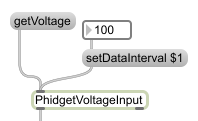
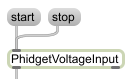
|Getting or setting values is done through messages linked to the inlet.<br/>Use '''set''' messages to change values and '''get''' messages to read them.</br>Use '''start''' and '''stop''' to control continuous sampling.||[[File:MaxMSP_get_and_set.png|link=]][[File:MaxMSP_Start_Stop.png|link=]]
|-
|colspan="2"|Phidget data is accessed either by one-time polling or at a fixed rate via on-board timers for some devices.<br/><br/>Getting or setting values directly via polling on the Phidget is done through messages linked to the inlet. The object’s inlet can be wired to send commands to the device, and the outlet used to retrieve the results. You can set values on the Phidget by using the set messages, and some properties can be read with get messages.<br/><br/>To sample at a fixed rate, use the start and stop messages to start and stop the data flow, respectively.
|-
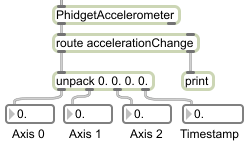
|Outlet data is always given a prefix to allow for routing. For instance, the digital input state state change event data is given the prefix stateChange, and the voltage input voltage change event similarly use voltageChange. The specific prefixes for each set of outlet data is listed on the API page for that class.<br/><br/>The rightmost outlet on the Phidget object outputs error event data. This will send information on error events such as saturation events. To see which error events may apply to your device, check its API page.||[[File:MaxMSP_Routing.png|link=]][[File:MaxMSP_Error_Event.png|link=]]
|-
|colspan="2"|{{hiddenh4|Step Four: Close and Delete}}
|-
|colspan="2"|In Max you do not need a specific close/delete block.
|-
|colspan="2"|{{hiddenh4|Special Case: Multiple Phidgets}}
|-
|colspan="2"|Multiple Phidgets can be used in a single program by adding additional objects.<br/>If using multiple devices of the same type, specify the '''serial number''' and '''channel''' to ensure the correct device is used.
|-
|}


*'''phidget22.dll''' contains the actual Phidget library, which is used at run-time. By default, the installer places it in C:\Windows\System32.
== Max Example Code ==
*{{SampleCode|MaxMSP|Max Examples}}


*'''PhidgetXXX.mxe''' is the Phidget library for your specific device. XXX denotes the name of your device. Please make sure the .mxe file corresponds with the device you are using. For example, if you are using a PhidgetDigitalInput, you will need the PhidgetDigitalInput.mxe. It is to be placed in the same directory as your Max/MSP application or anywhere in the Max/MSP search path.
==Phidget Programming Basics==
 
{{PhidgetProgrammingBasicsLink}}
If you do not want to use our installer, you can download the phidget22.dll and manually install it where you want; refer to our [[Manual Installation Instructions]].
 
===Use Our Examples===
 
Please start by downloading the [[Max/MSP Examples and Library]] and unpack them into a folder. These examples were written in Max/MSP 6, but any version above 6 is also supported.
 
Here, you will find example programs, in .maxhelp format for all the devices. The source file will be named the same as the software object for your device. If you are not sure what the software object for your device is, find your Phidget on our [http://www.phidgets.com webpage], and then check the {{Phidget22API}} documentation for it.
 
The only thing left to do is to run the examples! Open the .maxhelp file in the Max environment.
 
Once you have the Max/MSP examples running, we have a [[#Edit the Examples|teaching section]] below to help you follow them.
 
===Write Your Own Code===
 
When you are building a project from scratch, or adding Phidget function calls to an existing project, you'll need to configure the Max/MSP environment to properly link the Phidget Max/MSP libraries. To begin:
 
Place the .mxe in the same directory as the patcher, or anywhere in the Max/MSP search path. You can verify the search path locations by navigating to Options → File Preferences.
 
[[Image: MaxMSP_File_Preferences_PC.png|500px]]
 
The best way to start writing your patch is to modify an example, and saving it as a .maxpat file.
 
If you wish to start a new patch. All you need to do is create an object named PhidgetXXX where XXX is the name of your device. For example, the PhidgetRFID device will have the PhidgetRFID object name. The project now has access to the Phidget function calls and you are ready to begin coding.
 
The same [[#Edit the Examples|teaching section]] which describes the examples also has further resources for programming your Phidget.
 
==OS X==
 
Max/MSP has excellent support on OS X.
 
The first step in using Max/MSP on Mac is to install the Phidget library. Compile and install as described on the OS - OS X page, which also describes the different Phidget files, their installed locations, and their roles.
 
===Use Our Examples===
 
Please start by downloading the Max/MSP Examples and Library and unpack them into a folder. These examples were written in Max/MSP 6, but any version above 6 is also supported.
 
Here, you will find example programs, in .help format for all the devices. The source file will be named the same as the software object for your device. If you are not sure what the software object for your device is, find your Phidget on our [http://www.phidgets.com webpage], and then check the {{Phidget22API}} documentation for it.
 
The only thing left to do is to run the examples! Open the .maxhelp file in the Max environment.
 
Once you have the Max/MSP examples running, we have a [[#Edit the Examples|teaching section]] below to help you follow them.
 
===Write Your Own Code===
 
When you are building a project from scratch, or adding Phidget function calls to an existing project, you'll need to configure the Max/MSP environment to properly link the Phidget Max/MSP libraries. To begin:
 
Place the .mxe in the same directory as the patcher, or anywhere in the Max/MSP search path. You can verify the search path locations by navigating to Options → File Preferences.
 
[[Image: MaxMSP_File_Preferences_OSX.png|600px]]
 
The best way to start writing your patch is to modify an example, and saving it as a .pat file.
 
If you wish to start a new patch. All you need to do is create an object named PhidgetXXX where XXX is the name of your device. For example, the PhidgetRFID device will have the PhidgetRFID object name. The project now has access to the Phidget function calls and you are ready to begin coding.
 
The same [[#Edit the Examples|teaching section]] which describes the examples also has further resources for programming your Phidget.
 
== Edit the Examples ==
 
By following the instructions for your operating system and compiler above, you probably now have a working example and want to understand it better so you can change it to do what you want. This teaching section has resources for you to learn from the examples and write your own.
Your main reference for writing Max/MSP code will be the {{Phidget22API}} Manual:
 
=== Example Flow ===
 
First, let's explain how to operate the example.
 
[[Image: MSP Example.png|500px]]
 
The above screenshot is what shows up when you open the example for the PhidgetVoltageInput. If you are using a different device, your example patch will be different, but the idea is the same.
 
For this particular example, the Max object is called PhidgetVoltageInput, which is located near the bottom left of the screen. Objects/message boxes are connected to the inputs and outputs of the PhidgetVoltageInput object. The input objects will either cause a property of the device to change or request for a property to be retrieved. The output objects return the retrieved information. All the supported features of the device are shown in the .maxhelp file.
 
Try it for yourself! Click on the getSerial message box to request the Phidget to retrieve the serial number of the device. You should see the last output object of route changed to the serial number of your device. All devices support the getSerial object, and is the easiest way to determine if the Phidget libraries are correctly set up, and whether the Max/MSP application is connected to your device.
 
[[Image: MaxMSP_GetSerial.png]]
 
If your example contains the read message box, click on it. This will return device specific values to the screen.
 
[[Image: MaxMSP_Read.png|500px]]
 
If your example contains the start message box, you can continuously poll for events. Set the sample rate input for the setDataInterval object. Then, press the start message box to start sampling. When a noteworthy event occurs on a Phidget(i.e., when a sensor senses a change in the environment), the value will be displayed onto the screen. Press the stop message box to stop sampling.
 
For the PhidgetDigitalOutput example, there are setDutyCycle and setState message boxes. Changing the numbers will cause the digital output to change. Your example may contain device specific message boxes/objects to click on. See for yourself what they do!
 
For information regarding calls specific to your device, please see the {{Phidget22API}} for your specific device, which can be found in its user guide. Please note that some device functionality are not supported in Max/MSP; the .maxhelp example shows the complete list of functionality supported under Max/MSP.
 
=== Code Snippets ===
 
Your best resource to program code .help files in MaxMSP will be our examples. The examples are both our complete API (they include all of the calls for each Phidget you can use, and none you can't) and examples of how to use our API.
 
If you aren't familiar with concepts in Phidget programming, you may find our General Phidget Programming page helpful. It provides a very generic overview of what traditional languages follow when using Phidgets. For setup 'syntax', your main resource will of course be this MaxMSP page and the examples. But for conceptual details about particular actions - opening a Phidget, for example - the General Phidget Programming page is a more in-depth resource.
 
Keep in mind when reading these general resources that the Max/MSP libraries may not implement the full {{Phidget22API}} - some function calls and Phidget classes may not be supported. The .maxhelp files included with the Phidget externals show all the supported function calls for their type of Phidget.
 
In general, Phidgets can be placed inside the patcher using Max objects, and functions can be called on them using appropriately connected messages. We go over a basic setup for this below.
 
==== Step One: Initialize and Open ====
 
This tutorial uses a Phidget Interface Kit and a new instance will be created. This initializing and opening can be done by placing a new "object" object. Other objects can handle different Phidgets - a Spatial, a Temperature Sensor, a Motor Controller, etc. Only the name of the object changes. You can find the name in the example .maxhelp file for your device. The source file will be named the same as the software object for your device. If you are not sure what the software object for your device is, find your Phidget on our [http://www.phidgets.com webpage], and then check the API documentation for it.
 
In the case of a Voltage Input, we name it PhidgetVoltageInput:
 
[[Image: MaxMSP_VoltageInput_generic.png]]
 
'''Important:''' a local connection will reserve the device until closed. This prevents any other instances from retrieving data from the Phidget, including other programs. Every Phidget object in Max will automatically try to connect to and reserve the Phidget for itself. As long as a MaxMSP Phidget program is running, it will continuously try to connect to a Phidget, even trying to reconnect if it gets disconnected.
 
When the instance is created as with the Voltage Input above, normally it will make a connection to the first device of its type it can find. The Phidget object can also be declared with a serial number to open a specific Phidget Voltage Input instead:
 
[[Image: MaxMSP VoltageInput specific.png]]
 
=====Using a Phidget Over a Network=====
 
To use the Network Service, first the Phidget needs to be plugged in to a computer that has the Network  Service turned on within your local network. (For information on how to do this, see the Phidget Network Service page in the section on how to use the Network Service for your operating system). Then, in MaxMSP, we can change the open "object" text for various types of opening over a network. Many examples are given below.
 
Open any remote Digital Input on a network visible by MDNS:
 
{{Code|PhidgetDigitalInput remote}}
 
Open a remote Digital Input with serial number 35569, on any remote server
 
{{Code|PhidgetDigitalInput 35569 remote}}
 
'''NOTE:''' the following examples are only necessary for a network that cannot be connected to using MDNS
 
Open a remote Digital Input on server "James PC" with an IP address and port:
 
{{Code|PhidgetDigitalInput remote AF_INET "James PC" 192.168.2.5 5661}}
 
Open a remote Digital Input on server "James PC" on host "James-PC" port 5661 with password "pass":
 
{{Code|PhidgetDigitalInput remote AF_INET "James PC" "James-PC" 5661 "pass"}}
 
==== Step Two: Wait for Attachment (plugging in) of the Phidget ====
 
Although this is a required step in many of our other languages (and therefore you may be expecting this if coming from another Phidget language), in MaxMSP you do not have to add a specific waitForAttachment block.
 
Keep in mind, however, that if your Phidget is not responding within your MaxMSP program, it may simply not be plugged in!
 
==== Step Three: Do Things with the Phidget ====
 
There are two main approaches for retrieving data when working with Phidgets. Data is accessed either by one-time polling, or at a fixed rate via on-board timers for some devices.
 
Getting or setting values directly via polling on the Phidget is done through messages linked to the inlet. The object’s inlet can be wired to send commands to the device, and the outlet used to retrieve the results. Setting values on the Phidget is achieved by using the set messages, and some properties can be read with get messages:
 
[[Image: MaxMSP_get_and_set.png]]
 
For data, polling occurs through the "read" message. To sample at a fixed rate you use setDataInterval and use the start and stop message. Read will read the data off the Phidget once, while using start will trigger data to be sent or received in periodic intervals. If the sample rate is set to -1, then data output is only triggered on a change:
 
[[Image: MaxMSP_Read_Start_Stop.png]]
 
Phidget-specific data is always given a prefix in Max to allow for their routing. For instance, the digital input states are given the prefix “di” and the voltage ratio inputs similarly use “vr”. The specific prefixes used for each Phidget is listed in their respective help file.
 
Data common to all Phidgets, such as the serial number, is not prefixed.
 
With the prefixes and common data, the following picture would be an example of how to route and split some of the data for the PhidgetAccelerometer:
 
[[Image: MaxMSP_Routing.png]]
 
==== Step Four: Close and Delete ====
 
Although this is a required step in many of our other languages (and therefore you may be expecting this if coming from another Phidget language), in MaxMSP you do not have to add a specific close and delete block.
 
====Special Case: Multiple Phidgets====
 
Multiple Phidgets of the same type can easily be used inside a single program, it only requires another Phidget object placed. If two of the same type of Phidget object are placed, the serial number and channel arguments should always be specified (as well as hub port, if applicable) to ensure that the correct Phidget gets associated with the correct object.
 
== Further Reading ==
 
[[Phidget Programming Basics]] - Here you can find the basic concepts to help you get started with making your own programs that use Phidgets.
 
[[Data Interval/Change Trigger]] - Learn about these two properties that control how much data comes in from your sensors.
 
[[Using Multiple Phidgets]] - It can be difficult to figure out how to use more than one Phidget in your program. This page will guide you through the steps.
 
[[Polling vs. Events]] - Your program can gather data in either a polling-driven or event-driven manner. Learn the difference to determine which is best for your application.
 
[[Logging, Exceptions, and Errors]] - Learn about all the tools you can use to debug your program.
 
[[Phidget Network Service]] - Phidgets can be controlled and communicated with over your network- either wirelessly or over ethernet.
 
== Common Problems and Solutions/Workarounds ==
 
'''Crash: <span style="color:DarkRed">When a patch file is closed in the Max/MSP environment, the program crashes</span>'''
 
If in your Max/MSP environment, you have more patches(of the same Phidget object) than you have of the actual hardware device, the Max/MSP environment may crash. This is due to the fact that a single Phidget Max/MSP object only corresponds to a single Phidget device hardware. For example, your Max/MSP environment may experience unexpected behavior while you have one PhidgetInterfaceKit device connected to the computer, but you have a two seperate patches opened with a single PhidgetInterfaceKit Max object in each one.
 
Likely Fix: Please ensure that you do not use more patches(of the same Phidget object) than you have of the actual Phidget device.

Latest revision as of 21:52, 16 March 2026


Get Started

With the Phidgets Max library, it's easy to create Max patches that work with Phidget devices.

Max Libraries

To develop on Max with Phidgets, you'll need the Phidgets Max Library.

Unpack the zip file and copy the appropriate folder:

  • For 32-bit Max, copy the x86 folder.
  • For 64-bit Max, copy the x64 folder.

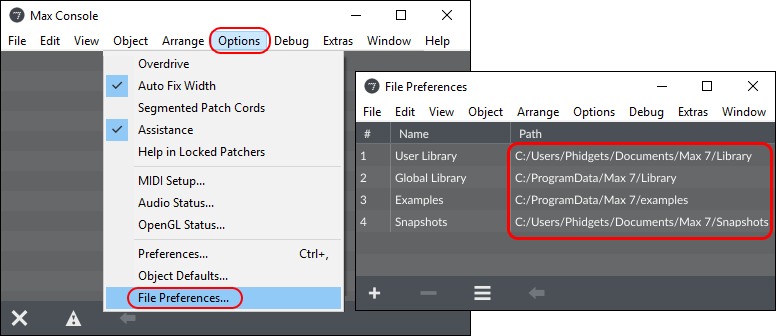
The folder you copied needs to be placed in a specific location for Max to reference it. Open Max and navigate to Options -> File Preferences.
Max filepreferences2.png

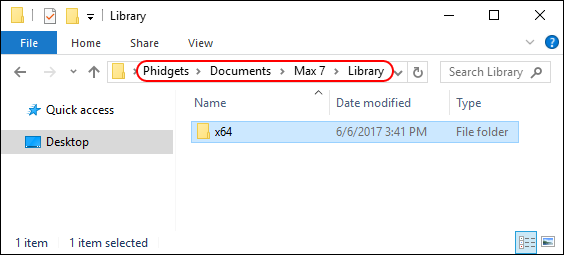
The folder that you copied earlier needs to be placed in any of the locations listed in File Preferences. Navigate to one of the locations and paste the folder:
Max folder2.PNG

The Phidget Max library can now be referenced.

Development Environment Configuration

Using Our Examples

Instructions
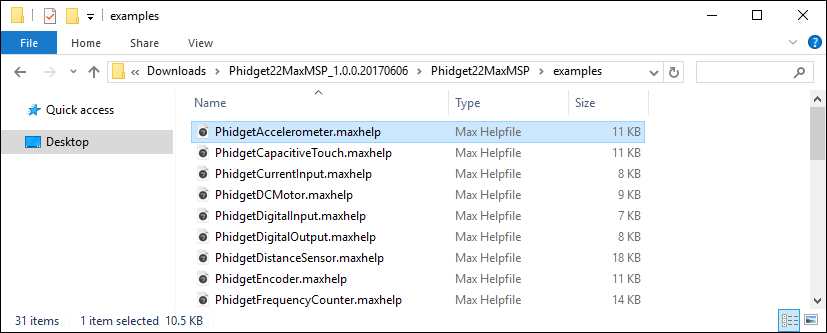
Navigate to the examples folder located within the Phidget22MaxMSP folder you previously unpacked: Max examples.PNG
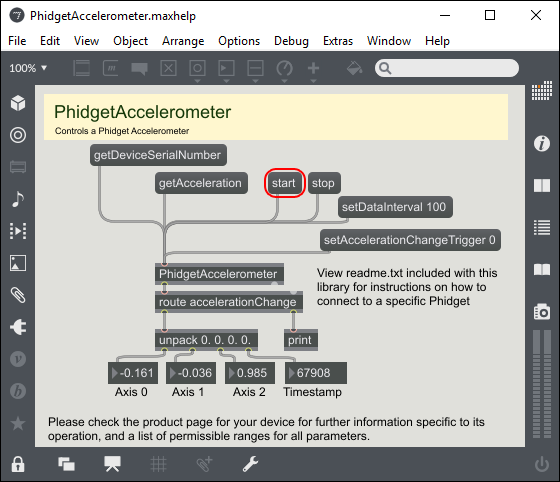
From here, select an example that will work with your Phidget and open it in Max. You can run the example by simply pressing the start button.

The example is now running. Play around with the device and experiment with some of the functionality. When you are ready, the next step is configuring your project and writing your own code!
Max run2.png

Writing your own Code

Instructions
You should now have working examples and a project that is configured. This teaching section will help you understand how the examples were written so you can start writing your own code.
Your main reference for writing Max code will be:

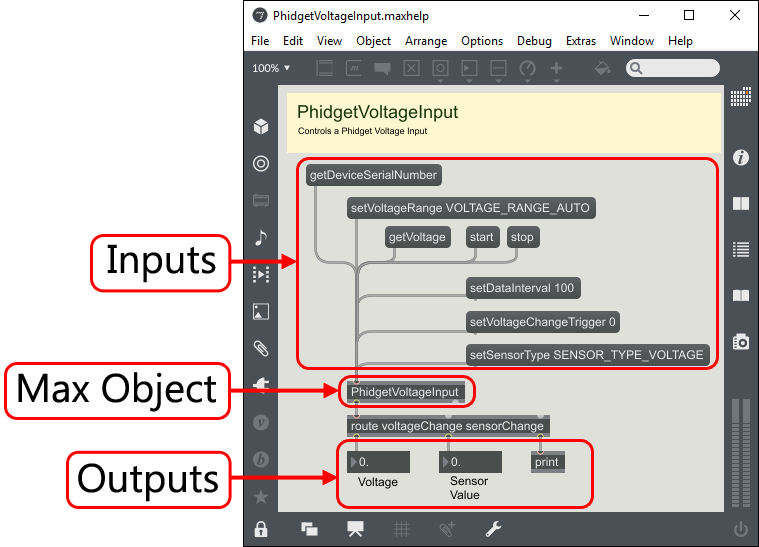
First, let's explain how to operate the examples. We will take a look at the PhidgetVoltageInput example:

For this particular example, the Max object is called PhidgetVoltageInput. Objects/message boxes are connected to the inputs and outputs of this object. Input objects will either cause a property of the device to change or request for a property to be retrieved. Output objects return the retrieved information.

All supported functions for Max can be found in the Phidget22 API.
MSP Example2.png
You can click on the getDeviceSerialNumber message box to request the Phidget to retrieve the serial number of the device. MaxMSP GetSerial.pngMaxMSP GetVoltage.png
If your example contains a get[DataType] message box (e.g. getVoltage), click on it to cause the associated data to be output with a relevant prefix.
If your example contains start and stop message boxes, you can use them to turn on continuous polling for events.

For the PhidgetDigitalOutput example, there are setDutyCycle and setState message boxes that control the output.
Your best resource to program in Max will be our examples. If you aren't familiar with concepts in Phidget programming, see the Phidget Programming Basics.
Step One: Initialize and Open
Initializing and opening the device is done by placing a new object. Other objects handle different Phidgets - a Spatial, a Light Sensor, a Motor Controller, etc. Only the name of the object changes. You can find the name for the object in the device's .maxhelp file (e.g. VoltageInput.maxhelp). If you are unsure what the software object for your device is, go to the API tab on its product page on our website. In the case of a Voltage Input, we name it PhidgetVoltageInput.

Important: a local connection will reserve the device until closed. This prevents any other instances from retrieving data from the Phidget, including other programs. Every Phidget object in Max will automatically try to connect to and reserve a Phidget for itself. As long as a Max Phidget object is running, it will continuously try to connect to a Phidget, even trying to reconnect if it gets disconnected.
MaxMSP VoltageInput generic.pngMaxMSP GetVoltage.png
Specifying a Phidget
When the instance is created as with the Voltage Input above, normally it will make a connection to the first device of its type it can find. The Phidget object can also be declared with a number of specifiers to open a specific Phidget instead.

Specifiers can be added to the object in the format: PhidgetExternal {Specifiers}

These will be written in the form: specifier=value

Available specifiers include:

  • serialnumber - The serial number of the device
  • channel - The channel of the device to open
  • hubport - The hub port the device is plugged into (where applicable)
  • ishubport - Should this channel be opened on a hub port directly, or on a connected VINT device (default)
  • remote - Forces connection to a remote device over a network, ignoring devices on the local machine
  • local - Forces connection to a device plugged into the local machine, ignoring network devices
Example: Opening a VoltageInput with serial number 349428. MaxMSP VoltageInput specific.png
Here are some other examples:
  • Open a Digital Input:
PhidgetDigitalInput
  • Open channel 1 of a Digital Input Phidget connected to port 2 of a hub with serial number 35569
PhidgetDigitalInput serialnumber=35569 channel=1 hubport=2
  • Open open hub port 2 as a DigitalInput for a hub with serial number 35569
PhidgetDigitalInput serialnumber=35569 hubport=2 ishubport=1
Using a Phidget Over a Network
To use the Network Server, first the Phidget needs to be plugged in to a computer that has the Network Server turned on within your local network (For information, see the Phidget Network Server page). Add a PhidgetNet object and send the message:enableServerDiscovery
Then configure the object to connect to a remote server.
MaxMSP Enable Server Discovery.pngMaxMSP Remote.png
Step Two: Wait for Attachment
In Max you do not need a specific waitForAttachment block. However, if your Phidget is not responding, ensure it is plugged in. Send a getAttached message to check.
Step Three: Do Things with the Phidget
Getting or setting values is done through messages linked to the inlet.
Use set messages to change values and get messages to read them.
Use start and stop to control continuous sampling.
MaxMSP get and set.pngMaxMSP Start Stop.png
Phidget data is accessed either by one-time polling or at a fixed rate via on-board timers for some devices.

Getting or setting values directly via polling on the Phidget is done through messages linked to the inlet. The object’s inlet can be wired to send commands to the device, and the outlet used to retrieve the results. You can set values on the Phidget by using the set messages, and some properties can be read with get messages.

To sample at a fixed rate, use the start and stop messages to start and stop the data flow, respectively.
Outlet data is always given a prefix to allow for routing. For instance, the digital input state state change event data is given the prefix stateChange, and the voltage input voltage change event similarly use voltageChange. The specific prefixes for each set of outlet data is listed on the API page for that class.

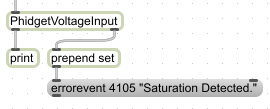
The rightmost outlet on the Phidget object outputs error event data. This will send information on error events such as saturation events. To see which error events may apply to your device, check its API page.
MaxMSP Routing.pngMaxMSP Error Event.png
Step Four: Close and Delete
In Max you do not need a specific close/delete block.
Special Case: Multiple Phidgets
Multiple Phidgets can be used in a single program by adding additional objects.
If using multiple devices of the same type, specify the serial number and channel to ensure the correct device is used.

Max Example Code

Phidget Programming Basics

To learn more about the structure of the example code, visit our Phidget Programming Basics guide.